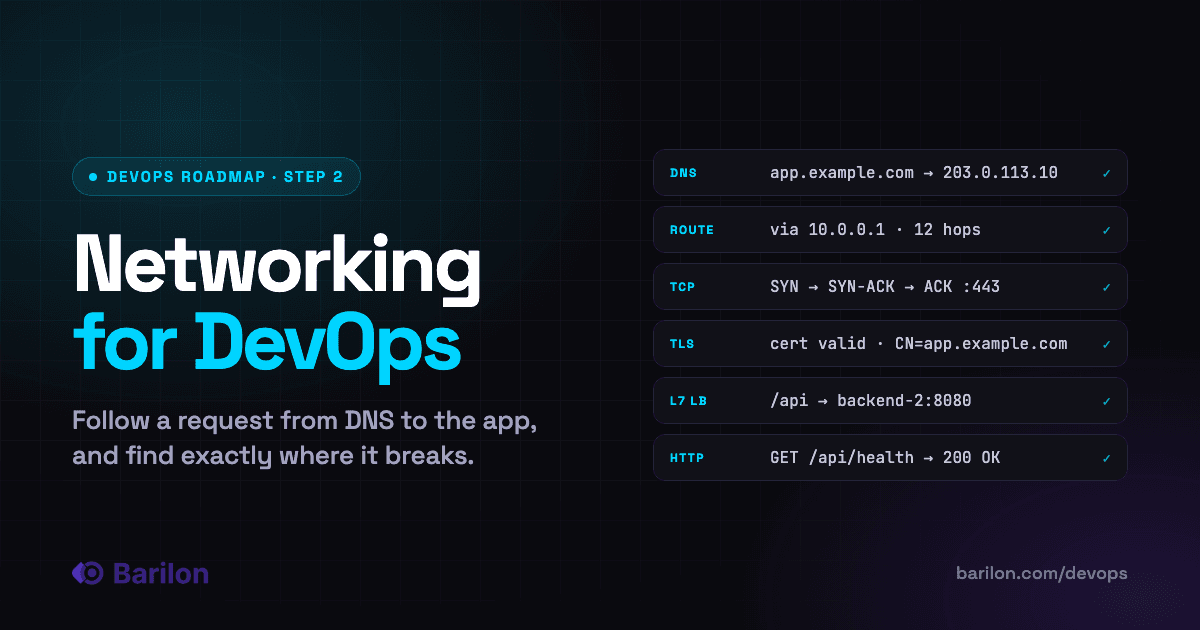
Networking is how the different parts of a system talk to each other. As a DevOps engineer, you'll lean on it every time an application can't reach its database, a website goes down for no obvious reason, or a Kubernetes pod can't resolve a service name.
Just like Linux, you don't need to be a network engineer. That is a whole specialty of its own. What you do need is to be able to follow a request from the client all the way to the application, spot where it stops, and use the right tools to prove it.
This guide is step 2 of the DevOps roadmap. It builds on step 1, Linux. We'll use plenty of those commands here.
How to use this guide: keep a Linux VM or cloud instance open and run every command as you read. Networking only really clicks when you watch it happen.
What to learn (and what to skip)
| Learn this well | Know it exists, don't go deep |
|---|---|
| IP addresses, subnets and ports | Subnetting maths by hand for exams |
| TCP vs UDP | BGP, OSPF and routing protocols |
| DNS and how to debug it | Configuring physical switches and routers |
| HTTP, HTTPS and status codes | VLAN trunking, spanning tree |
| TLS and certificates | Packet-level protocol internals |
| Routing, NAT and firewalls (concepts) | Writing complex iptables / nftables rules |
| Proxies and load balancers (L4 vs L7) | Hardware load balancer configuration |
| A troubleshooting method and toolkit | Network certification syllabuses |
1. Start with the basics
Start with how two machines talk on the same network, then how they talk across different networks.
These are the building blocks:
- IP addresses identify where traffic needs to go, like a street address.
- Ports identify which application on that machine receives it, like a flat number. SSH is port
22, HTTP is80, HTTPS is443, PostgreSQL is5432. - Switches connect devices within a local network.
- Routers move traffic between networks.
- LAN (local area network) is your home or office network. WAN (wide area network) connects networks over long distances; the internet is the biggest WAN of all.
You'll see hubs in introductory material. They're mostly obsolete; switches are what you'll actually meet.
Private vs public IPs
Not every IP address is reachable from the internet. These ranges are private and only work inside a network:
| Range | Typical use |
|---|---|
10.0.0.0/8 | Cloud VPCs, corporate networks |
172.16.0.0/12 | Docker's default networks |
192.168.0.0/16 | Home routers |
Everything else is (broadly) public. Your laptop has a private IP at home; your router shares one public IP for the whole house.
Subnets and CIDR
10.0.1.0/24 is CIDR notation. The /24 says the first 24 bits are the network part, so this subnet holds addresses 10.0.1.0 to 10.0.1.255 (256 addresses). The bigger the number after the slash, the smaller the network:
/16means 65,536 addresses (a whole VPC)/24means 256 addresses (a typical subnet)/32means exactly 1 address (a single host)
You'll use this constantly when designing cloud networks and writing firewall rules. You don't need to calculate it by hand; tools like ipcalc do that for you.
The default gateway
When a machine wants to reach an IP outside its subnet, it sends the traffic to its default gateway, usually a router. No gateway, no internet.
TCP vs UDP
- TCP sets up a connection first, guarantees delivery and keeps data in order. Used by HTTP, SSH and databases.
- UDP just fires packets with no connection and no guarantees, which makes it faster and lighter. Used by DNS lookups, video calls and streaming.
Check yourself: "My server has an IP address and my application listens on port 8080. What does a client need to reach it?" (A route to that IP, nothing blocking port 8080 on the way, and the app actually listening on an address the client can reach.)
Practise this: run ip addr on your VM. Is your address private or public? Which subnet is it in? Run ip route and find your default gateway.
2. Use the OSI model as a troubleshooting guide
The OSI model splits networking into 7 layers. Some of it won't make sense yet, and that's fine. It will by the end of this guide. Don't memorise it for an exam; use it to place a problem at roughly the right layer.
| Layer | Name | What lives here | Example problem |
|---|---|---|---|
| 7 | Application | HTTP, DNS, SSH | App returns 500 |
| 6 | Presentation | TLS, encoding | Certificate expired |
| 5 | Session | Connection sessions | (rarely matters day to day) |
| 4 | Transport | TCP, UDP, ports | Nothing listening on port 8080 |
| 3 | Network | IP, routing | No route to the destination |
| 2 | Data link | MAC addresses, switches | Wrong VLAN |
| 1 | Physical | Cables, Wi-Fi | Cable unplugged |
In practice you'll mostly think in four layers: network (IP), transport (TCP/ports), TLS, and application (HTTP).
When someone says "the website is down", these are all different problems:
- Is the network interface up?
- Can the machine reach the destination IP?
- Is the application listening on the expected port?
- Is the TLS handshake failing?
- Is the application returning an HTTP error?
Working bottom up through that list is the fastest way to stop guessing.
Practise this: for each of the five questions above, write down one command you'd use to answer it. (You'll have all of them by the end of this guide.)
3. Follow one request across the internet
This is the most valuable exercise in this whole guide. You type https://example.com into a browser and press Enter. What happens?
- DNS lookup. The browser needs an IP address, not a name. It checks its cache, then the operating system's cache, then asks a DNS resolver (from your ISP, or one like
1.1.1.1). The resolver walks the DNS hierarchy (root servers, then the.comservers, thenexample.com's own nameservers) and returns an IP. - Routing. Your machine sees that IP isn't on the local network, so it sends the traffic to its default gateway. Routers pass it hop by hop across the internet towards the destination.
- TCP connection. The client and server do the three-way handshake:
SYN,SYN-ACK,ACK. Now there's a connection on port443. - TLS handshake. For HTTPS, they agree on encryption, and the server proves its identity with a certificate. The browser checks it's valid, not expired, and issued for
example.com. - HTTP request. The browser sends something like
GET / HTTP/1.1with headers such asHost: example.com. - Proxy or load balancer. In real systems, the request usually lands on a load balancer or reverse proxy first, which forwards it to one of several application servers.
- Response. The application builds a response (
200 OKplus the HTML) and it travels all the way back.
All of that typically happens in well under a second.
Where caching happens
Responses can be cached at several points, which is great for speed and confusing when debugging:
- DNS caches: in the browser, the OS and the resolver. Each record has a TTL (time to live) that controls how long it's cached.
- CDN: a content delivery network (like Cloudflare or CloudFront) caches content close to users.
- Reverse proxy: can cache responses in front of your app.
- Application: may cache data internally (for example with Redis).
Classic gotcha: you change a DNS record, but half your users still hit the old server. That's DNS caching: they'll see the change only when the old record's TTL expires. Lower the TTL before a planned migration.
Check yourself: "Does this failure happen before the request reaches the server, or did the application receive it and return an error?" This one question halves your debugging time.
Practise this: run curl -v https://example.com and match each part of the output to the steps above: the resolved IP, the TCP connection, the TLS handshake, the request headers and the response.
4. Understand the protocols you'll troubleshoot
Focus on the protocols you'll meet every week as a DevOps engineer.
DNS
DNS turns names into addresses. The record types you'll actually use:
| Record | What it does | Example |
|---|---|---|
A | Name to IPv4 address | api.example.com to 203.0.113.10 |
AAAA | Name to IPv6 address | api.example.com to 2001:db8::10 |
CNAME | Name to another name (an alias) | www to example.com |
MX | Where to deliver email | mail.example.com |
TXT | Free text, used for verification | Domain ownership, SPF |
NS | Which servers are authoritative for the domain | ns1.provider.com |
dig example.com                # full DNS answer, including TTL
dig +short example.com         # just the IP
dig example.com CNAME          # ask for a specific record type
dig @8.8.8.8 example.com       # ask a specific resolver (compare answers)
nslookup example.com           # older, simpler alternative
cat /etc/resolv.conf           # which resolver this machine uses
TCP and UDP
You covered the difference above. Now learn to see connections on a real machine:
sudo ss -lntp                  # listening TCP ports and the process behind each
sudo ss -lnup                  # same for UDP
ss -tn                         # current TCP connections and their states
nc -zv db.internal 5432        # can I open a TCP connection to this host and port?
A connection stuck or refused at this level means the problem is below HTTP: nothing is listening, or something is blocking the port.
HTTP and HTTPS
Learn the request methods (GET, POST, PUT, DELETE), headers (Host, Content-Type, Authorization), redirects, and above all the status codes, because they tell you who's at fault:
| Code | Meaning | Usually means |
|---|---|---|
200 | OK | All good |
301 / 302 | Redirect | Check where it's sending you (curl -L follows it) |
400 | Bad request | The client sent something malformed |
401 / 403 | Unauthorised / forbidden | Authentication or permissions |
404 | Not found | Wrong path, or a routing rule doesn't match |
500 | Internal server error | The application crashed or threw an error |
502 | Bad gateway | The proxy couldn't get a valid response from the backend |
503 | Service unavailable | No healthy backends, or the app is overloaded |
504 | Gateway timeout | The backend took too long to respond |
The 5xx codes from a proxy (502, 503, 504) are the ones you'll chase most often in DevOps. They mean the proxy is fine but something behind it isn't.
It's also worth knowing that HTTP/2 sends many requests over one connection, and HTTP/3 runs over UDP (using QUIC) instead of TCP. You don't need the details yet, just that they exist.
curl -v https://example.com            # connection, TLS and HTTP details
curl -I https://example.com            # response headers only
curl -L http://example.com             # follow redirects
curl -o /dev/null -s -w "%{http_code}\n" https://example.com   # just the status code
TLS and certificates
TLS is what puts the "S" in HTTPS. Understand:
- A certificate proves a server's identity. It's issued by a certificate authority (CA), such as Let's Encrypt, and is only valid for specific hostnames and a set time period.
- Hostname validation: the certificate must match the name you connected to. A certificate for
example.comwon't satisfyapi.example.comunless it covers it. - The chain of trust: your certificate is signed by an intermediate CA, which is signed by a root CA your machine already trusts. A missing intermediate is a classic cause of "works in my browser, fails in
curl". - Expiry: certificates expire. Expired certificates take down real production systems every week. Automate renewal.
openssl s_client -connect example.com:443 -servername example.com   # inspect the TLS handshake and certificate
echo | openssl s_client -connect example.com:443 -servername example.com 2>/dev/null | openssl x509 -noout -dates -subject   # expiry dates and subject
Practise this: use dig to find which IP github.com resolves to, curl -I to see its response headers, and openssl to find when its certificate expires.
5. Learn routing, NAT and firewalls
A service can be perfectly healthy and still unreachable, because traffic has no valid route, a firewall blocks it, or an address is translated along the way.
Routing
Every machine has a routing table that says where to send traffic for each destination:
ip addr                        # interfaces and their IP addresses
ip route                       # the routing table
ip route get 8.8.8.8           # which route and interface traffic to this IP would use
traceroute example.com         # every hop between you and the destination
mtr example.com                # traceroute and ping combined, live
The line starting default via is your default route: "anything I don't have a specific route for, send here."
NAT
NAT (network address translation) rewrites addresses as traffic passes through:
- Source NAT (SNAT): many private machines share one public IP for outgoing traffic. Your home router does this, and so does a cloud NAT gateway for private subnets.
- Destination NAT (DNAT): traffic arriving at a public IP and port gets forwarded to a private machine. This is "port forwarding", and it's also how Docker's
-p 8080:80works.
Firewalls
Firewalls allow or deny traffic based on rules: source, destination, port and protocol. You'll meet them in several places:
- On the host:
ufw,firewalld, or iptables / nftables underneath. - In the cloud: security groups and network ACLs in AWS, firewall rules in GCP, NSGs in Azure.
- In Kubernetes: NetworkPolicies.
At this stage, aim to recognise when a firewall or NAT rule might be involved. A connection that hangs and times out often means a firewall silently dropped it; a connection that's refused straight away usually means the host is reachable but nothing is listening on that port. You can study packet filtering in depth later.
Practise this: run traceroute to a website and count the hops. Then, on your VM, block a port with ufw, try to connect from another machine, and notice the difference between a timeout and a "connection refused".
6. Understand proxies and load balancers
Real applications rarely run on a single server. Learn how traffic reaches an application when there's more than one backend.
- A reverse proxy receives requests on behalf of backend applications. It can terminate TLS, add headers, cache, and route requests to different backends.
- A load balancer distributes traffic across several backends.
- The same product can do both jobs. NGINX, HAProxy, Envoy and cloud load balancers all act as reverse proxies and load balancers.
(A forward proxy is the opposite: it sits in front of clients, like a corporate web proxy. You'll mostly deal with reverse proxies.)
Layer 4 vs Layer 7
| Layer 4 (transport) | Layer 7 (application) | |
|---|---|---|
| Sees | IP addresses and ports | Full HTTP: hostname, path, headers, cookies |
| Can route by | Destination IP and port | api.example.com vs www, /api vs /static |
| TLS | Usually passes it through | Usually terminates it |
| Speed | Faster, simpler | More work per request, far more flexible |
| Examples | AWS NLB, Kubernetes Service | AWS ALB, NGINX, Envoy, Kubernetes Ingress |
Health checks
Load balancers regularly check each backend (for example, GET /health every 10 seconds) and stop sending traffic to unhealthy ones. A badly designed health check is a common cause of outages: too strict and healthy servers get pulled; too lenient and broken ones keep getting traffic.
Algorithms
- Round robin: each backend takes a turn.
- Least connections: send to the backend with the fewest active connections.
- Hashing: the same client (or key) always goes to the same backend, which is useful for caching and "sticky sessions".
Know what each one aims to do, and know that no algorithm guarantees even load. Requests aren't equal: one slow request can tie up a backend while round robin keeps sending it more.
This is the foundation for NGINX, Envoy, cloud load balancers, and Kubernetes Ingress and Gateway API.
Practise this: run two copies of a simple app on ports 8081 and 8082, put NGINX in front as a load balancer, and watch requests alternate between them. Then stop one backend and see what NGINX does.
7. Practise tracing a failure
Every networking problem you'll face boils down to the same method: work layer by layer until you find where the request stops.
| Step | Question | Command |
|---|---|---|
| 1 | Does the name resolve to the right IP? | dig +short app.example.com |
| 2 | Is there a route to that IP? | ip route get <IP>, traceroute <IP> |
| 3 | Can I open a TCP connection to the port? | nc -zv <IP> 443 |
| 4 | Is anything listening on the server? | sudo ss -lntp (on the server) |
| 5 | Does the TLS handshake succeed? | openssl s_client -connect <host>:443 |
| 6 | What does the HTTP layer say? | curl -v https://app.example.com |
| 7 | What do the proxy and app logs say? | journalctl -u nginx, app logs |
When you're really stuck, tcpdump shows you the raw packets, which is the final word on whether traffic arrives at all:
sudo tcpdump -i any port 443 -n        # watch traffic on port 443
sudo tcpdump -i any host 10.0.1.25 -n  # watch traffic to or from one host
For every problem, write down what you tested and what that result ruled out. That habit is what separates guessing from troubleshooting, and it's exactly what interviewers look for.
Mini project: break it and fix it
Put everything together on a real setup:
- Run a small application that listens on port
8080. - Put a reverse proxy (NGINX) in front of it on port
80, then add HTTPS on443with a certificate. - Point a domain name at it (a cheap domain, or a
/etc/hostsentry if you don't have one). - Confirm it works end to end with
curl -v.
Now deliberately break one thing at a time, and use dig, curl -v, ss -lntp, ip route and openssl to find each fault:
- Point the DNS record at the wrong IP.
- Make the app listen on
127.0.0.1instead of0.0.0.0, or change its port. - Change the proxy's backend port so it no longer matches the app.
- Block port
443with a firewall rule. - Use an expired or mismatched certificate.
For each one, note the symptom the user would see (timeout, 502, certificate error...) and how you narrowed it down.
You're ready to move on when you can trace a request from DNS to the application, explain what each hop does, and work out whether a failure is caused by name resolution, routing, connectivity, TLS, a proxy or the application itself.
Interview questions you should be able to answer
- What happens, step by step, when you type a URL into a browser and press Enter?
- What's the difference between TCP and UDP? Give an example of where each is used.
- A user says "the website is down." How do you troubleshoot it?
- What's the difference between a
502and a504? - You changed a DNS record but some users still reach the old server. Why?
- What's the difference between a Layer 4 and a Layer 7 load balancer?
- A connection times out, but another one is refused immediately. What does each tell you?
- What does
10.0.0.0/16mean, and how many addresses does it contain?
Want the full answers, plus more DevOps interview questions? Head to Interview Prep →
Prefer to practise out loud? Book a mock interview and get feedback before the real one.
What's next
With Linux and networking in place, you have the foundation everything else runs on. Next on the roadmap is Git: version control, branching and collaborating through pull requests.
And when you reach Kubernetes later in the roadmap, you'll see these exact ideas again. Pods have IPs, Services are load balancers, CoreDNS is DNS, and Ingress is a Layer 7 reverse proxy. Learn the basics here and Kubernetes networking becomes far easier to understand.